Import + Relink
To start animating, we need things to work with. Import them right and every layer stays editable.
This section enables you to
- Import the file types you need
- Import Illustrator files with editable layers
- Fix missing files
Import Files
After Effects handles many formats. These are the ones you need:
- .ai – illustrations with layers
- .psd – image compositions with layers, e.g.
loop.psdin the starter folder - .jpg .png .tif – images
- .wav .mp3 – audio
- .mov – video
-
01
Import a file
Double-click the empty Project panel, or Ctrl-click and choose Import > File.
⌘I
Illustrator Files
Every element you want to animate needs its own layer. Prepare the file in Illustrator first. Footage merges everything visible into one flat file, Composition keeps every layer editable.
-
01
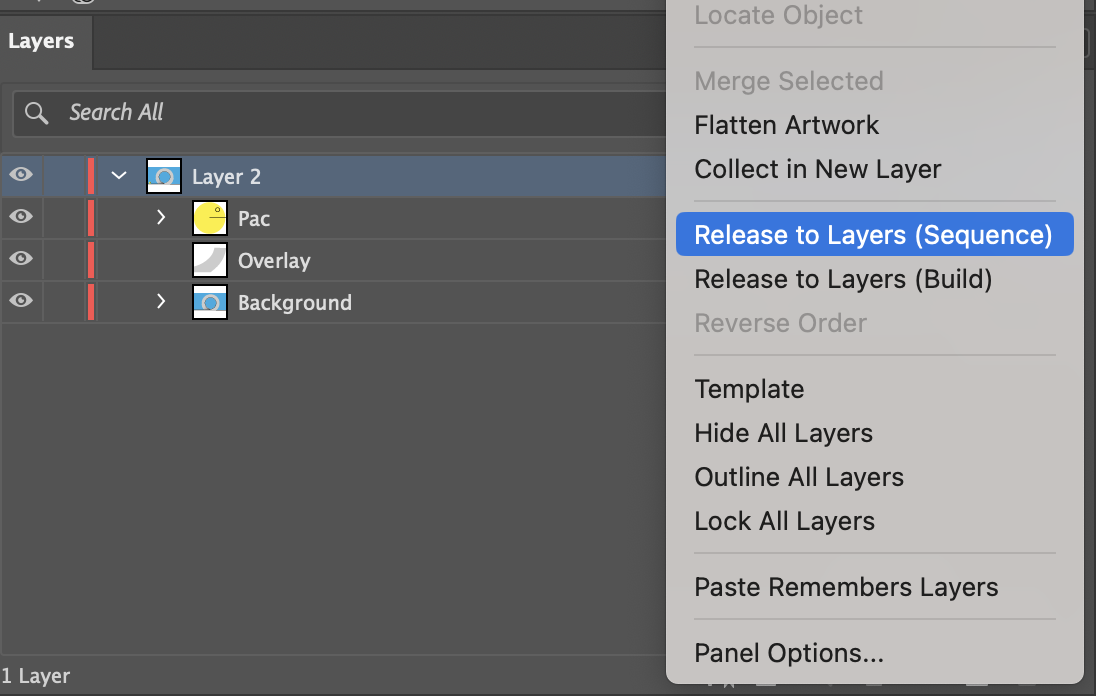
Release to layers
In the Layers panel, select the top layer. Choose Release to Layers (Sequence) from the panel menu.
-
02
Clean up
Rename the layers and drag them out of the group. Delete the empty group and save.
-
03
Import as composition
With Retain Layer Sizes, each anchor point sits in the middle of its object. With plain Composition, it sits in the middle of the screen.
Composition – Retain Layer Sizes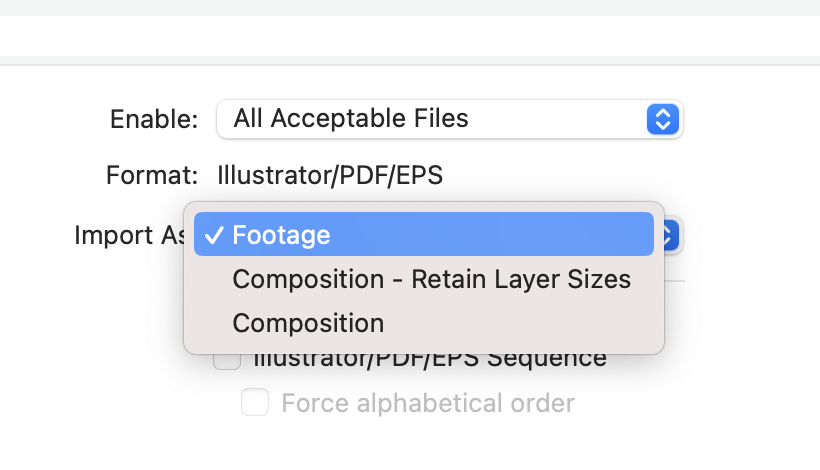
-
04
File it
Move the new layers folder into footage > ai and the comp into comps.
Relink
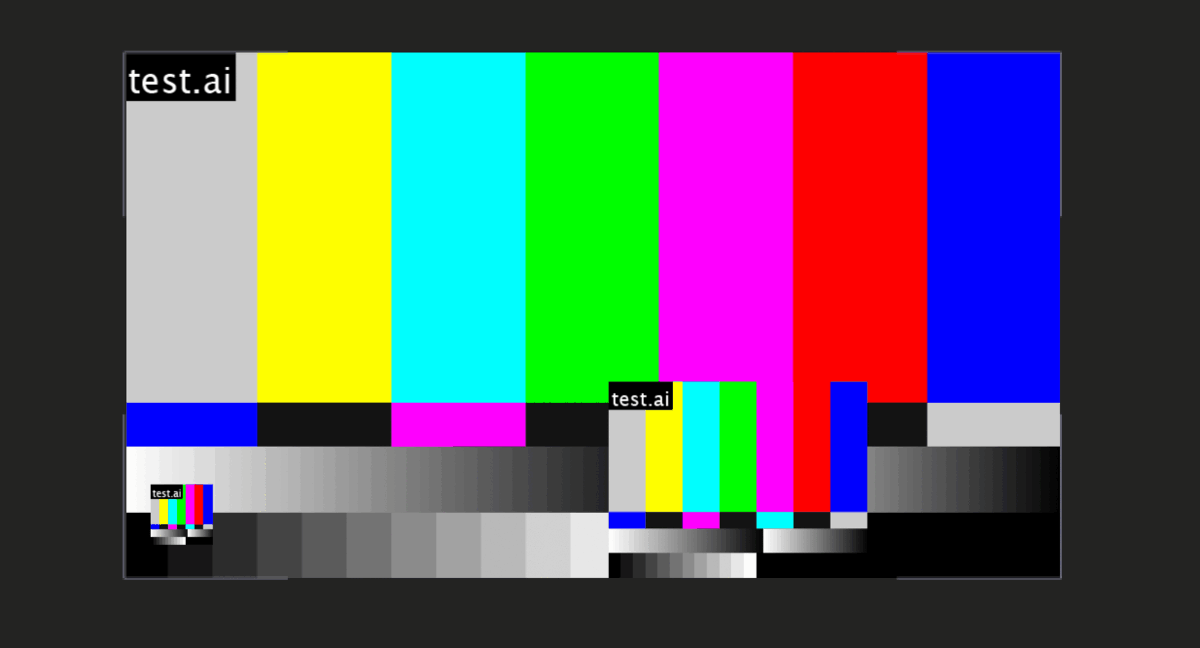
If a file moves out of its folder, After Effects can’t find it. You get a warning and colour bars instead of your file.
-
01
Move it back
Put the file back where it was. Ctrl-click it in the Project panel and reload.
Reload Footage -
02
Or replace it
Ctrl-click the first missing file and point After Effects to its new place.
Replace Footage > File
Collect Files
Handing in a project or moving to another computer? Collect Files copies the project and every file it uses into one new folder.
-
01
Collect
Save first, then choose Collect Source Files: All and pick an empty folder.
File > Dependencies > Collect Files -
02
Check the folder
Open the new folder: the project, all footage and a short report. Hand in this folder, not your working one.
Import a layered file
- comps
- loop
- footage
- ai
- loop Layers
- ball/loop.ai
- bg/loop.ai
- loop/loop.ai
- loop Layers
- ai
Shortcuts
| Action | Mac |
|---|---|
| Import File | ⌘I |
| Import Multiple Files | ⌥⌘I |
More info
- Importing and interpreting footage – Adobe After Effects Help
- Working with footage items – Adobe After Effects Help